OBIEE 11g: Hierarchical Roll-Up and Individual Total of Facts

Here we will be seeing on how to create and achieve two scenarios

  1. A Parent-Child Hierarchical Roll-Up of Revenues from sub-ordinate employees to Root/Top Employee.
  2. In the other we will be seeing how to create and achieve Parent-Child Hierarchy of Employees showing their individual Revenues.

First we have to create our RPD to model out Dimensions and Facts to support the Hierarchical of Sales Representatives.
Secondly we create our report using the “Oracle BI Answers” to show these 2 scenarios.

  1. First to create our star schema, open the “Oracle BI Administration Tool” from “Start” menu.
  2. In the Menu select “File” -> “New Repository…”
  3. When the below window comes up enter values for the Name, “Repository Password:” and “Retype Password:” fields as shown in below screenshot.
  4. Click “Next” button to continue
  5. When the below screen appears select the “ORCL” entry and enter values for the “User Name:” and “Password:” fields as shown below screen shot.
  6. Click the “Next” button to continue.
  7. When the below screen appears leave the defaults as shown in below screenshot and click “Next” button to continue.
  8. When the below screen appears select the four tables as show below and click the “import selected” button.
  9. Click “Finish” to continue.
  10. In the Main “Administration Tool” window right click and select “New Object” -> Alias and enter “D41 Sales Rep” and then click “OK” button to create an alias as shown below:
  11. Similarly go ahead and create the next 3 aliases as show below i.e.: “D42 Sales Rep Parent Child”, “D43 Sales Rep Position” and “F4 Revenue” as show in below screenshot.
  12. Select all the newly created table, right click and select “Physical Diagram” -> “Object(s) and All Joins” .
  13. On the Menu select “New Join” then click on the “F41 Revenue” table then click on the “D42 Sales Rep Parent Child” table.
  14. As show in the below screenshot create the Expression by select first the “MEMBER_KEY” then the “EMPL_KEY” and clink on the “OK” button.
  15. This will create an error link the two tables.
  16. Similarly create a “New Join” between “D42 Sales Rep Parent Child” and “D41 Sales Rep” tables as show in below screen shot by selecting the “EMPLOYEE_KEY” and “ANCESTOR_KEY”.
  17. Similarly create a “New Join” between “D41 Sales Rep” and “D43 Sales Rep Position” tables as show in below screen shot by selecting the “POSTN_KEY” and “POSTN_KEY”.
  18. The Final joins created is as shown in below screenshot.
  19. Right click in the “Business Model and Mapping” pane and select “New Business Model…” and enter “SalesRoot” as show in below screenshot.
  20. Click the “OK” button to close the window.
  21. From the Physical pane to the “Business Model and Mapping” pane drag the “D41 Sales Rep” and “F41 Revenue” tables to under the “SalesRoot” model as show in below screenshot.
  22. Next select both the tables, then right click and select “Business Model Diagram” -> “Whole Diagram”.
  23. Create the following join between the “F41 Revenue” and “D41 Sales Rep” is created and the “Cardinality” is as shown in below screenshot.
  24. Make sure the below join is created as show in screenshot.
  25. Rename your tables and columns as show in below screen shot.
  26. Create a hierarchy by right clicking on “D41 Sales Rep” table and select “Create Logical Dimension” -> “Dimension with Parent-Child Hierarchy…” as shown in below screen shot.
  27. Make sure to select the “Member Key:” value as “D41 Sales Rep_Key” and “Parent Column:” value as “Mgr id” as show in below screen shot.
  28. Click on the “Parent-Child Settings…” button.
  29. In the “Parent-Child Relationship Table Settings” window click on the “Select Parent-Child Relationship Table” icon.
  30. In the “Select Parent-Child Relationship Table” window browse to the “ORCL” -> “SAMP_EMPL_PARENT_CHILD_MAP” table in the left pane and select it, then click on the “Select” button.
  31. In the window shown in below screen shot select the four values for the respective fields as shown in below screenshot.
  32. Click the “OK” button.
  33. Right Click on the “Sales Rep Name” column and select the “New Logical Level Key…”.
  34. Make sure that the values are as shown below and the “Use for display” checkbox is selected as shown in below screenshot.
  35. Expand the “H41 Sales RepDim” Hierarchy and double click the “Detail” folder to open the below window as shown in below screenshot.
  36. Check the checkbox for the “Sales Rep Name” and uncheck the checkbox for the “Sales Rep Number” and make sure the “Parent” value is assigned to “Mgr id”.
  37. Click “OK” button to close the window.
  38. Double click on the “LTS1 Revenue” fact logical source table.
  39. Goto the “Content” tab in the “Logical Table Source – LTS1 Revenue” window as show in below screenshot.
  40. For the “Logical Level” select the “Detail” value.
  41. Click “OK” button to close the window.
  42. Double Click on the “LTS1 Sales Rep” Dimension Logical Source Table.
  43. Click on the “Add” Icon.
  44. Select the two tables on the right pane and click on the “Select” button as shown in the below screen:
  45. Make sure that the below two joins are created as shown in the below screenshot.
  46. Click on the “OK” button to close the window.
  47. Drag the “SalesRoot” from the “Business Model and Mapping” pane to the “Presentation” pane as shown in the below screenshot.
  48. This finishes the creation of the “SalesRoot” Business Model.
  49. Select the “File” -> “Check Global Consistency” option on the main menu and fix any errors shown then save your repository.
  50. Now we are onto creating the “SalesIndiv” Business Model.
  51. In the “Physical” layer pane create the 4 aliases as we did previously but this time name them “D51 Sales Rep” , “D52 Sales Rep Parent Child” , “D53 Sales Rep Position” and “F51 Revenue” accordingly.
  52. Select all the newly created 4 alias tables and right click and choose “Physical Diagram” -> “Object(s) and All Joins”
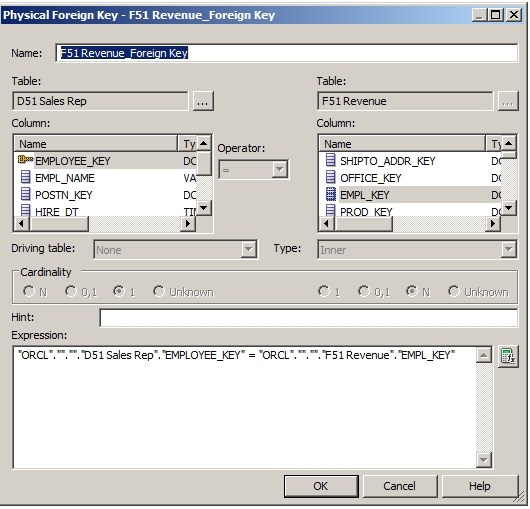
  53. Create the following Join with “EMPLOYEE_KEY” and “EMPL_KEY” as shown in below screenshot.
  54. Click “OK” to close the window.
  55. Create the following join by selecting the “POSTN_KEY” and “POSTN_KEY” as shown in below screenshot.
  56. Click “OK” button to close the window.
  57. Finally you should end up with the following joins as shown in below screenshot.
  58. Close the “Physical Diagram” window by clicking the “X” button.
  59. Now create a new model “SalesIndiv” in the “Business Model and Mapping” Pane.
  60. Drag the 2 tables “D51 Sales Rep” and “F51 Revenue” to the “SalesIndiv” Business model.
  61. Select both the tables and Right click, select “Business Model Diagram” -> “Whole Diagram” .
  62. Make sure that the link is shown as in below screenshot.
  63. Double click on the “LTS1 Sales Rep” and Click on the “+” icon.
  64. In the Browse window select both the tables and click the “Select” button as shown in below screenshot.
  65. Make sure that the two joins have been created as shown in below screenshot.
  66. Select the “D51 Sales Rep” and right click and select the “Create Logical Dimension” -> “Dimension with Parent-Child Hierarchy”
  67. Make sure that “D51 Sales Rep_Key” and “Mgr id” are selected for the “Member Key:” and “Parent column:” values respectively as shown in below screenshot.
  68. Click on the “Parent-Child Settings…” button.
  69. Click on the “Select Parent-Child Relationship Table” icon.
  70. In the new window that comes up select the “D52 Sales Rep Parent Child” table and click the “Select” button.
  71. Click “OK” on the “Logical Dimension – D51 Sales RepDim” window to close it.
  72. Select the appropriate “MEMBER_KEY”, “ANCESTOR_KEY” , “DISTANCE” and “IS_LEAF” values as shown in below screenshot.
  73. Right click on the “Sales Rep Name” and select the “New Logical Level Key…” as shown in below screenshot.
  74. Make sure that the values correspond to that shown in the below screenshot:
  75. Click “OK” button to close the window.
  76. Click on the “Detail” Level folder and confirm below values are shown as in below screenshot.
  77. Click “OK” button to close the window.
  78. Drag the “SalesIndiv” Business Model from the “Business Model and Mapping” pane to the “Presentation” pane and validate everything is ok as shown in below screenshot.
  79. Select the “File” -> “Check Global Consistency” option on the main menu and fix any errors shown then save your repository.
  80. We are now going to implement our hierarchical and individual roll-up reports.
  81. Open up the web browser and enter the URL: http://localhost:9704/analytics
  82. On the OBIEE Menu select New->Analysis->Select Subject Area->SalesRoot.
  83. Select the two columns as shown in below screenshot:
  84. For the 2nd column, select Options and “Edit Formula”.
  85. In the “Column Formula” field enter the below formula as seen in the screenshot:
  86. Now goto the “Results” tab and we can observe that all the totals are added up at the top most Sales Rep: Michele Lombardo.
  87. No we create for the individual roll-up totals.
  88. On the OBIEE Menu select New->Analysis->Select Subject Area->SalesIndiv.
  89. Select the 2 columns as shown in the below screenshot:
  90. Select the 2nd column options “Edit formula” and enter the below formula as shown in below screenshot:
  91. Now click the “Results” tab to see the output.
  92. Here we can see that the Individual Roll-Up of totals where the Sales Rep: Michele Lombardo total Revenue made is $110,000.00 dollars where as compared to the
  93. previous Total Hierarchical Roll-Up was : 50,000,000.00 which was the totals of his and his sub-ordinates totals.
  94. There is one more thing that is observed above in the report is that the Sales Rep: Sophie Bergman and her sub-ordinates are not listed here since “Sophie Bergman” has no rows which contributes to the Revenue, as can seen in the below screenshot:
  95. In order to list these “No Rows” Sales Reps i.e. Sophie Bergman and her sub-ordinates we would have to go with an alternate procedure that includes the “UNION” reports.
  96. Open your web browser to the URL: http://localhost:9704/analytics and login as admin user “weblogic”
  97. Select the New->Analysis->Select Subject Area->SalesIndiv.
  98. Select the 2 columns “Sales Rep Name” and “Revenue”.
  99. Select the 2nd column options “Edit formula” and enter SUM(“F51 Revenue”.”Revenue”) formula and click the “OK” button.
  100. Next select the “Combine results based on union, intersection, and difference operations” icon i.e green “+” icon.
  101. Under the “Select Subject Area” section select “SalesIndiv” as shown in the below screenshot.
  102. Drag the “Sales Rep Name” to the “Add Column(Sales Rep Name)” section.
  103. Drag the “Sales Rep Number” to the “Add Column(SUM(Revenue))” section.
  104. On the 2nd “Sales Rep Number” column select options “Edit formula” and enter ‘ ‘ i.e two single quotes with a space in between and click “OK” button.
  105. Your final Union Report should look as shown in the below screenshot.
  106. Click on the “Result” tab to display the report as shown in the below screen:
  107. You can notice that Sales Rep: Sophie Bergman and her sub-ordinates are now seen but we have lost the Hierarchical structure that exists above.

Note:
In order to get the “SalesIndiv” subject area to work with the hierarchical layout and the Individual Roll-Up criteria, one way is to get those members with out any rows or table entries to be updated with entries for atleast one row with a value of “0” for revenue field.
With this we would not require the UNION report workaround.

Summary:
As can be seen we have ran through a lot of steps to create our Business Models for both the hierarchical and Individual roll-up scenarios.
After demonstrating the lack of support to the 0-rows members to show up in the hierarchical order, we have created one work around to view those members.
Maybe there is a way for us to come up a Hierarchy for the Individual roll-up and I will be happy if some one can post a comment and point me in that direction.

OBIEE 11g: Creating Scrolling Ticker Views

This demonstration shows how we can create ticker boxes to show scrolling content for example some market results or other eye appealing information.

  1. Open the URL: http://localhost:9704/analytics and login as administrator user “weblogic”
  2. Goto the “New” -> Analysis -> “Sample Sales” and select the below 5 columns as shown:
  3. i.e. “Customer Name”, “Product” , “Units” , “Revenue” and another “Revenue” column.
  4. Select the 5th column options and select “Edit formula”.
  5. In the “Column Formula” section select “F(…)” and in the “Insert Function” window select “Aggregate” -> “Rank” so the formula shows:
  6. RANK(“Base Facts”.”Revenue”) and click the “OK” button.
  7. Select the 4th “Revenue” column options and select “Sort” -> “Sort Descending”
  8. Next select the “Results” tab to show the report.
  9. On the “Subject Areas” menu select “New View” -> “Other Views >” -> Ticker as shown in below screenshot.
  10. Click on “Edit View” on the “Ticker” menu.
  11. Once the Ticker screen opens, click on the “Clear Fields” button to clear all fields.
  12. Select the “Contains HTML Markup” checkbox.
  13. Select “Up” for the “Direction” field.
  14. Enter “700” for the “Width” field and leave the “Height” field empty.
  15. Enter the below in text in the “Row Format” field:<p>&nbsp;&nbsp;<font

    color=”#000099″><b>@1</b></font> is ranked <b>#@5</b> with revenue of <font color=”green”><b>@4</b></font> for selling <b>@3</b> units of <font color=”#009900″><b>@2</b></font> </p>

  16. Cilck the “Advanced…” button.
  17. Enter “2” for the “Scroll Amount” field.
  18. Enter 1 for the “Scroll Delay” field.
  19. Enter below text for the “Additional Marquee Attributes” field:onMouseEnter=this.stop();

    onMouseLeave=this.start(); onmouseover=this.stop(); onmouseout=this.start(); class=TickerMarquee

  20. Click “OK” button to close the “Advanced Ticker Options” window.
  21. Then click on the “Done” button to go back to the “Results” tab with “Compound Layout”.
  22. Click on the “Save Analysis” icon to save your report.
  23. Click on the “Show how results will look on a Dashboard” icon to open the window as below with the ticker box scrolling text upwards.

Summary:
Here we saw that by applying html formatting we can achieve almost what ever layout to our data columns.

OBIEE 11g: Adding Tooltips and conditional coloring to Currency Data

Here we will observe how to format data and add tool tips on column headers and column data.

  1. Open the URL: http://localhost:9704/analytics and login as administrator user “webogic”.
  2. Select “New” -> “Analysis” -> “Sample Sales” to start with your new report.
  3. Select the 3 columns from the left “Subject Areas” pane: “Per Name Month” and “Revenue” as show below.
  4. Then on the 3rd “Revenue” column select options “Edit Formula”
  5. In the “Edit Column Formula” window select the “Custom Headings” checkbox and enter “Revenue D” in the “Column Heading” field and click the “OK” button.
  6. Select the 3rd “Revenue D” column options and select “Column Properties”.
  7. In the “Column Properties” window select the “Conditional Format” tab.
  8. Select the “Add Condition >” then the “Revenue D”.
  9. In the “New Condition” window select “is less than or equal to” for the “Operator” field and “700000” for the “Value” column and click the “OK” button.
  10. In the “Edit Format” window under the “Cell” section select the “Background Color”.
  11. In the “Color Selector” window enter “#FFCC99” and click the “OK” button.
  12. Next select the “Data Format” tab and check the “Override Default Data Format” checkbox.
  13. then enter as per below show screenshot:
  14. Create another similar condition bye selecting the “Add Condition >” -> “Revenue D”.
  15. Enter “is greater than” for the “Operator” and “700000” for the “Value”.
  16. Select the “Style” tab and click on the “Background Color” under the “Cell” section and enter “#CCFFFF” and click “OK” to close the “Color Selector” window.
  17. On the “Data Format” tab enter the same values as mentioned in previous steps.
  18. Make sure your entries confirm to the below screenshot and click the “OK” button.
  19. Go back to the “Selected Columns” screen and select the 2nd “Revenue” column options “Edit formula”
  20. Select the “Column Headings” and “Contains HTML Markup” checkboxes and enter below text for the “Column Heading” field:
  21. Revenue
  22. In the “Column Formula” enter the below text:
  23. CASE WHEN “Base Facts”.”Revenue” > 700000 THEN ‘
    ’ || ‘$’ || CAST(“Base Facts”.”Revenue” AS VARCHAR(40)) || ‘

    ’ ELSE ‘

    ’ || ‘$’ || CAST(“Base Facts”.”Revenue” AS VARCHAR(40)) || ‘

    ’ END

  24. Click “OK” button to close the “Edit Column Formula” window.
  25. Select the 2nd “Revenue” column options “Column Properties”.
  26. Then select the “Data Format” tab.
  27. Check the “Override Default Data Format” checkbox.
  28. Select the “HTML” for the “Treat Text As” field and click the “OK” button.
  29. Click the “Save Analysis” icon on the top right to save the analysis and enter “Custom Rev Sales” for the “Name” field.
  30. Click the “Results” tab to show Tooltips as below on the 2nd Column “Revenue” header.
  31. You can observe that when the mouse is over the blue and orange areas in the 2nd “Revenue” columns, tooltips are show according to the color.

Summary:
As you can see we have created 2 currency columns and for one “Revenue” we had used the custom CASE statement which does our formatting.
for the other “Revenue D” column we have used OBIEE’s out-of-the box conditional formatting.
The tooltips feature is not supported on the out-of-box OBIEE hence we had to put that in our CASE statements.

OBIEE 11g: Authentication first with LDAP then with External Database Table

Here I am going to demonstrate where on set of users present in the LDAP server as well as another set of users and passwords present in an External Oracle Database Table (here “SECURITYTABLE”) can login into the http://localhost:9704/analytics, the Oracle Analytics.

  1. Create an sql file to create the oracle database table for external authentication as shown below:
  2. You can copy the below text and save it into a file name : sectab.sqlCREATE TABLE “SECURITYTABLE”
    (    “ID” NUMBER,
    “GRP” VARCHAR2(20),
    “PWD” VARCHAR2(20),
    “SALESREP” VARCHAR2(20),
    “USERNAME” VARCHAR2(20)
    ) ;Insert into SECURITYTABLE
    (ID,GRP,PWD,SALESREP,USERNAME) values (1,’SalesAdmin’,’az’,’ALAN ZIFF’,’AZIFF’);
    Insert into SECURITYTABLE
    (ID,GRP,PWD,SALESREP,USERNAME) values (2,’SalesAdmin’,’at’,’ANDREW TAYLOR’,’ATAYLOR’);
    Insert into SECURITYTABLE
    (ID,GRP,PWD,SALESREP,USERNAME) values (3,’SalesRep’,’aj’,’ANN JOHNSON’,’AJOHNSON’);
    Insert into SECURITYTABLE
    (ID,GRP,PWD,SALESREP,USERNAME) values (4,’SalesRep’,’bj’,’ANNE WILLIAMS’,’AWILLIAMS’);
    Insert into SECURITYTABLE
    (ID,GRP,PWD,SALESREP,USERNAME) values (5,’SalesRep’,’bn’,’BETTY NEWER’,’BNEWER’);
    Insert into SECURITYTABLE
    (ID,GRP,PWD,SALESREP,USERNAME) values (6,’SalesRep’,’cd’,’CHRIS DREW’,’CDREW’);
    Insert into SECURITYTABLE
    (ID,GRP,PWD,SALESREP,USERNAME) values (7,’SalesRep’,’cm’,’CHRIS MUIR’,’CMUIR’);
    Insert into SECURITYTABLE
    (ID,GRP,PWD,SALESREP,USERNAME) values (8,’SalesRep’,’da’,’DALE AREND’,’DAREND’);
    Insert into SECURITYTABLE
    (ID,GRP,PWD,SALESREP,USERNAME) values (9,’SalesRep’,’df’,’DALE FAIRWEATHER’,’DFAIRWEATHER’);
    Insert into SECURITYTABLE
    (ID,GRP,PWD,SALESREP,USERNAME) values (10,’SalesRep’,’ds’,’DICK SCHMIDT’,’DSCHMIDT’);


  3. Execute the sectab.sql file in command prompt to create and populate the SECURITYTABLE as show below:
  4. Open the “Oracle BI Administration Tool” and “Open Offline” the file e.g: C:OracleFMWinstancesinstance1bifoundationOracleBIServerComponentcoreapplication_obis1repositorySampleAppLite.rpd
  5. Right click the “ORCL” connection in the “Physical” layer pane and select “New Object” -> “Connection Pool…”
  6. Enter “SECURITY” for the “Name:” field.
  7. Select “ODBC 3.5” for the “Call interface:”
  8. Select “ORCL” for the “Data source name:”
  9. Enter BISAMPLE, BISAMPLE for the “User name:” and “Password:” fields respectively.
  10. Then click the “OK” button.
  11. Enter “BISAMPLE” in the “Confirm Password” window and click the “OK” button.
  12. Right Click the “SECURITY” connection pool in the “Physical” layer pane and select “Import Metadata”
  13. Select the “ORCL” entry and enter the BISAMPLE for both the “User Name:” and “Password:” fields, then click the “Next” button.
  14. Click “Next” button with below checkboxes select as show in screenshot.
  15. Select the SECURITYTABLE and click on the single ” > ” button to update the “Repository View:” as shown below, then click “Finish” button.
  16. Now you should be able to see “SECURITYTABLE” in the “Physical” layer pane as shown below:
  17. Right Click on the “SECURITYTABLE” and select “View Data…”.
  18. On the “Select Connection Pool you want to use for database ORCL” window, select “SECURITY” then click on “Select” button.
  19. You should now able to view the data table show below:
  20. Click on the “Close” button.
  21. On the Administration Tool Menu select “Manage” -> “Variables…”
  22. In the “Variable Manager” window, right click on the right pane and select “New Initialization Block…”
  23. On the “Session Variable Initialization Block” window click the “Edit Data Source…” button.
  24. In the “Session Variable Initialization Block Data Source” window select “Database” for the “Data Source Type:” field
  25. Select the “Default initialization string” button and enter the below SQL:
    SELECT GRP, SALESREP, USERNAME, 2 FROM SECURITYTABLE WHERE USERNAME = ':USER' AND PWD = ':PASSWORD'
  26. Click the “Browse…” button and in the “Select Connection Pool” window select “SECURITY” the click the “Select” button as show below:
  27. Then click “OK” button to close the “Session Variable Initialization Block Data Source” window.
  28. In the “Variable Target” section click on the “Edit Data Target…”
  29. In the “Session Variable Initialization Block Variable Target” window click on “New…” button.
  30. In the “Session Variable” window enter “GROUP” for “Name:” field and click on the “OK” button
  31. Click “Yes” on the Warning pop-up window.
  32. Similarly create all 4 Session Variables: GROUP, DISPLAYNAME, USER and LOGLEVEL as show below.
  33. Click on the “OK” button to close the window.
  34. Finally on the “Session Variable Initialization Block” window enter “Security” for the “Name:” field.
  35. Make sure “Required for authentication” check box is NOT Selected.
  36. Verify entries as in below screenshot and Click “OK” button.
  37. On the “Variable Manager” select “Action” -> “Close”.
  38. On the “Administration Tool” window menu select “Save”.
  39. Select “Yes” to the “Do you wish to check global consistency?” and make sure no Warnings or Errors are shown.
  40. Now go to the URL: http://locahost:7001/em and login with the admin user “weblogic” .
  41. Goto “Administration” on the top menu and under “Security” section select “Manage Catalog Groups”
  42. Click the “+” icon with “Create a new catalog group” tooltip.
  43. On the “Add Group” window enter “SalesAdmin” for the “Catalog Group Name *” and click on the “OK” button.
  44. Create another catalog group with the same procedure above: “SalesRep”.
  45. Now goto the URL: http://localhost:7001/em to deploy the latest SampleAppLite.rpd that we modified above.
  46. Goto the “Farm_bifoundation_domain” -> “Business Intelligence” -> “coreapplication” on the left pane.
  47. On the right pane select “Deployment” -> “Repository” tabs.
  48. The click on the “Lock and Edit Configuration” link above the “Deployment” tab.
  49. Click the “Close” button once the pop-up window appears.
  50. Select the “Browse…” button and goto the location of the SampleAppLite.rpd file and click on “Open”.
  51. Enter the “Repository Password” and “Confirm Password” entries as “Admin123”.
  52. Then click the “Apply” button on the top right.
  53. Then click on the “Activate Changes” link.
  54. Click “Close” button one “Activate Changes – Completed Successfully” show up.
  55. Then click on the “Restart to apply recent changes” link.
  56. After the “Overview” screen show up click on the blue “Restart” button.
  57. Click the “Yes” button when “Are you sure you want to restart all BI components?” shows up
  58. Click on the “Close” button one the “Restarted Successfully” shows up.
  59. Now we are ready to test the LDAP and External Table authentication.
  60. Goto the URL: http://localhost:9704/analytics and login as adminstrator user “weblogic”
  61. Select “New” -> “Analysis” -> “Sample Sales” in the “Home” section.
  62. Select two columns from the “Subject Areas” section as show below: i.e “Per Name Year” and “Revenue” columns.
  63. Click on the “Save Analysis” icon and browse to “Shared Folders” -> “11g Shared” (if not there you can create one”
  64. Enter “Revenue Sales” for the “Name” Field and click the “OK” button.
  65. Now goto the “Catalog” tab and select “More” -> “Permissions” for the “Revenue Sales” .
  66. On the “Permission” window select the “BI Consumer Role” and click the ” X ” icon to delete that permission.
  67. Click on the ” + ” icon to add a new permission.
  68. On the “Add Application Roles, Catalog Groups and Users” window select “Catalog Groups” for the “List” field and click the “Search” button.
  69. Select the “SalesRep” on the left side and click the blue ” > ” icon to move it to “Selected Members” on the right side as show below:
  70. Click the “OK” button.
  71. Verify the below entries are as shown below and click “OK” button on the “Permission” window.
  72. Now “Sign Out” as the “weblogic” user and login giving “User ID” and “Password” as “AJOHNSON” and “aj” respectively.
  73. Click the “Catalog” tab browse to “Shared Folders” -> “11g Shared” folder.
  74. On the Right click “Open” on the “Revenue Sales”.
  75. You able to see this since “AJOHNSON” user is under the “SalesRep” Group.
  76. Now try a user under the “SalesAdmin” Group and see if you can open the same “Revenue Sales”
  77. Now “Sign Out” as “AJOHNSON” and login as “ATAYLOR” and password as “at”.
  78. Click the “Catalog” tab browse to “Shared Folders” -> “11g Shared” folder.
  79. Here since your not in the “BI Administrator Role” or “SalesRep” group, the “Revenue Sales” report itself is invisible to you.

Note:
In order to override the LDAP authentication and use only External Database Table authentication, check the below check box in one of the previous steps.

Summary:
You would have observed we were able to login with both the administrator user “weblogic” whom is a part of the LDAP system and “AJOHNSON” whom exists in the external SECURITYTABLE oracle database table.
Playing around with the authentication section on the weblogic’s console you can configure a variety of authentication combinations.