Category: Uncategorized

Presentation Variable, prompt values in Report Titles (OR) Using Presentation Variable in Dashboard Text object and Narrative View directly in OBIEE

Normally, to let user know that what are the selected values in dashboard prompt, we use narrative views or Filter views.
In this blog entry, you will see that how to use presentation variable in directly narrative view and in dashboard objects.
Recently, I had a requirement like prompt is populated with some values along with All Choices
When user selects a particular value from drop-down that value should be displayed on report and when select All Choices nothing to be display.
Variables in Narrative View:
For this i went with the following approach.
1. Create a prompt with presentation variable say, var_region and set Default to: All Choices. Save the prompt
prompt
2. Create a report with some measures and the dimension column i used as prompt in the step 1
criteria
3. Click on Results tab, and add the narrative view to compound layout
4. In Narrative section mention the presentation variable name directly @{var_region}, setRows to display to 1 and click OK to add the narrative to compound layout
narrative
5. Arrange views, so that the narrative view comes under the title view
arrange-cl
6. Go to Criteria tab
7. Apply filter condition on that dimension and assign presentation variable to the filter. Save the report
filter-condition
8. Now create a dashboard page and add the prompt and report just now you created
9. Save the page and you can see that there nothing appears in narrative view as default value for prompt is All Choices.
10. Select any value from prompt and click on Go. You will see the selected item in report.
Note: If you are writing any text in narrative view like, Region is:@{var_region}, then even for all choices the text will be shown but no value shown for prompt
So, when there All choices option is selected in prompt associated with presentation variable, it holds nothing. It holds the value when there is single value selected. Of course, variables contains only single value
Variables in Dashboard Object – Text
  1. Edit the dashboard page.
  2. Add the Text dashboard object to the existing section
text-object
3. Click on Properties option for Text object and write the following code.
<center><font Size=’4′><font color=”#000000″>@{var_region}</font></font></center>
Don’t forget to click on Contains HTML Markup check box
text-properties
4. Click on Properties of Report > Show View and select Table1 to show only the table view on dashboard, so that the narrative we are not showing. This avoids the displaying prompt values twice
show-view
5. Save the page and go to dashboard. As default value is All Choices, you will not see anything on dashboard related to text object
6. Select any value from drop-down and click on Go, and watch that the selected item is appears on dashboard
dashboard-result
Normally, this post explains how to use presentation variables directly in views or text dashboard object and displaying prompt values in report.
Set yesterday or some date value as default in OBIEE dashboard prompt

Aim is to set default value to yesterday or some other day that you desired in dashboard prompt. So, when we click on the dashboard page.
This can be done in many ways
Here I am going to introduce 3 ways of doing the same.
  1. Using Advanced SQL in Prompt (From Answer side)
  2. Using repository variable (From rpd side)
  3. Using derived column in rpd (Same using repository variable)
We discuss this one by one

Using Advanced SQL in Prompt (From Answer side):

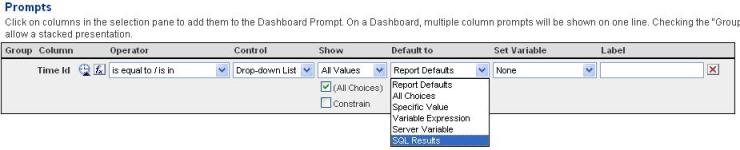
  1. Create a prompt on date column as per your requirement
  2. In Default to option drop-down, select SQL Result SQL Result
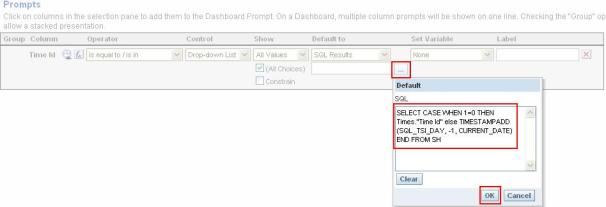
3.   Now click on eclipse button provided under selected SQL Result option
4.   Write the following query in the editor & click on OK.
(Here I am explaining to set default value to yesterday,)
 SELECT CASE WHEN 1=0 THEN Times.”Time Id” else TIMESTAMPADD(SQL_TSI_DAY, -1, CURRENT_DATE) END FROM SH
In general, query will be,
SELECT CASE WHEN 1=0 THEN “any date column”  else TIMESTAMPADD(SQL_TSI_DAY, -1, CURRENT_DATE) END FROM “SubjectAreaName”
Write SQL
5.   Now add this prompt to dashboard page and you will be able to see the prompt is filled with the default value for yesterday
Note: If you want to set some other date as default, you can do that by simply changing the else part of SQL written.

Using repository variable (From rpd side):

1.   Open rpd and go to Manage > Variables… and select new initialization block to creating dynamic repository variable. Select new initialization block option.
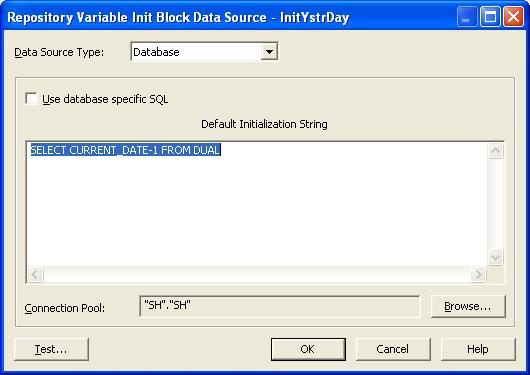
2.   Click on Edit Data Source… and write the query & choose the corresponding connection pool as shown below.
Query is:
SELECT CURRENT_DATE – 1 FROM DUAL
(or)
SELECT SYSDATE – 1 FROM DUAL
QueryForVariable
3.   Click on OK to confirm the query (You can test here the query o/p by clicking on Test button)
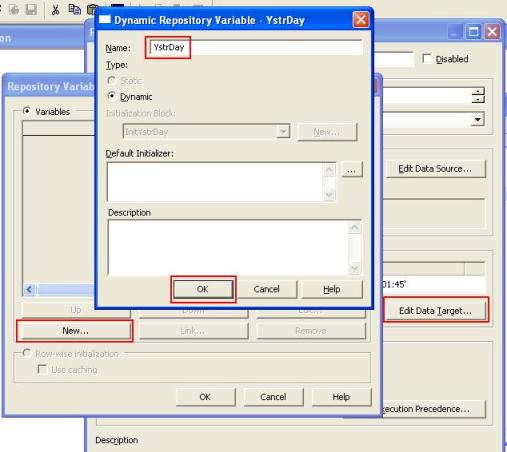
4.   Click on Edit Data Target… option and click New… to create new repository variable
5.   Give repository variable Name, here I am using YstrDay as Variable Name and click OK
Repository Variable
6.   Click OK and again OK to confirm creation of initialization block.
7.   Save the rpd and go to answers and reload the server metadata.
8.   Go to the prompt you have created already, and this time select Server Variable from Default to option.
Server Variable
9.   Click on Eclipse button under the Server Variable option and mention the repository variable name in editor. i.e. “YstrDay” in my case.
10. Save the prompt and check the default value displayed on dashboard.
Note: Again, if you want to change the default date value to some other you need to change the query written in initialization block of rpd

Using derived column in rpd:

1.   Even this is using repository variable, but this time I am creating dedicated column for this in rpd. So that you can simply make it use without mentioning case when condition in writing query or mentioning the repository variable name
2.   Create a Logical column under Time related table and click on Use existing logical column as the source in order to specify the functionality
3.   Write VALUEOF(YstrDay) in eclipse as functionality
4.   Now in query, of 1st method, you can replace timestampadd thing with Yester Day column you have created in rpd
Note: Here i am using SH rpd. So all objects mentioned here are related to SH schema

Finding week number of current date in current month in OBIEE

Reference to this post to which i gave reply, in OBIEE forums .
question is: How to calculate the week of the current month.
To be more clear if the date is: 1-aug-2009 then week is:1, if it’s 8-aug-2009 then week is: 2 .
Like this, the week number should be generated for given date column.
The solution is: use the CEILING(DAYOFMONTH(“D0 Time”.”T00 Calendar Date”)/7.00)functionality in OBIEE Answers

Finding week number of current date in current month in OBIEE

Reference to this post to which i gave reply, in OBIEE forums .
question is: How to calculate the week of the current month.
To be more clear if the date is: 1-aug-2009 then week is:1, if it’s 8-aug-2009 then week is: 2 .
Like this, the week number should be generated for given date column.
The solution is: use the CEILING(DAYOFMONTH(“D0 Time”.”T00 Calendar Date”)/7.00)functionality in OBIEE Answers